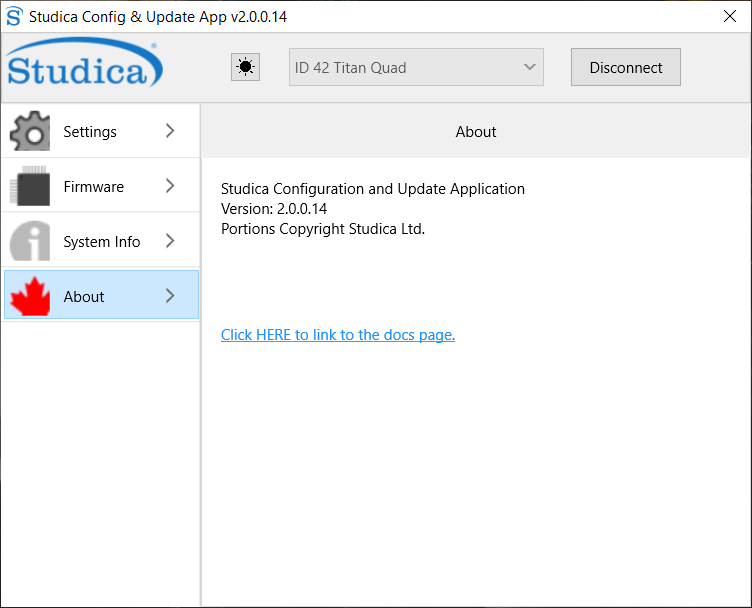
Update and Configuration App
The Update and Configuration App is used to configure and update the Titan Quad Motor Controller.
Download the Latest Version
Using the App
Settings
The landing or Settings page allows for the setting of the custom CAN ID, Encoder Ticks per rev for the motor you are using, the current limit for the motors, Motor idle mode, S-curve sensitivity, and limit switch control.

When the app finds a valid device, it will be displayed in the drop-down menu.
Note
The default CAN ID out of the box is 42.
CAN ID
The CAN ID is the unique id of the motor controller on the CAN bus. The valid range is 1 - 62.
Encoder Resolution
Is the counts per revolution of the encoder you are using on your motor. For example, the Studica Maverick has a CPR of 732, whereas the Pitsco Torquenado has a CPR of 1440.
Current Limit
This is the limit you want for the amount of current to flow to the motors. Valid range 0 - 20A.
Idle Mode
When false, this sets the motors to coast mode, and when high, the motors are in break mode.
S-Curve Sensitivity
Sets the sensitivity level of the S-Curve formula.
Limit Switches
Control panel for limit switch configuration. There are two limit switch ports per motor on the Titan, a high and a low.
Parameters
Enable - simple enable and disable
NO/NC - let the microcontroller know if you are using a NO contact or a NC contact (inverts the output)
Automatic Bounce back - upon making contact with the limit switch, the motor will move in the opposite direction just a bit.
Save Configuration
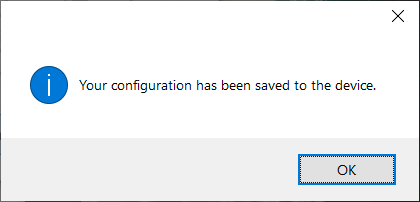
Saves the current settings to the TitanQuad. A prompt will confirm that settings have been saved.
Restore Factory Defaults
Will restore the TitanQuad to it’s recommended factory settings.
Firmware
Important
Internet connection is required to download firmware!
Every so often, a firmware upgrade is required to fix a bug or include new functionality.

To update the firmware, navigate to the firmware tab and then hit check for updates.
Note
If the button is greyed out, you are not connected to the TitanQuad, hit connect in the upper right-hand corner.
A prompt will appear as it checks the version on the TitanQuad to the server version.

If there is an update, another prompt will ask if you would like to download the new firmware.

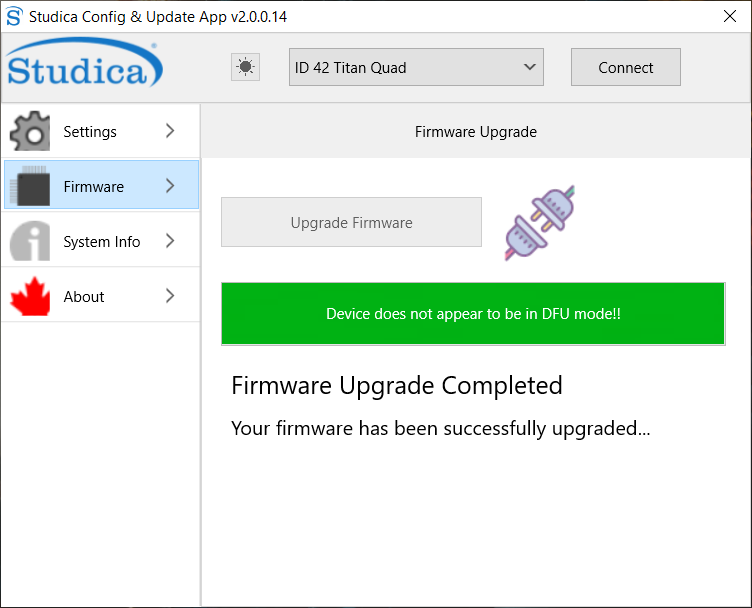
Once downloaded, you can hit Upgrade Firmware to flash the new firmware to the TitanQuad.

Note
To tell if the TitanQuad is in update mode check to see if the power indicators are green and the status light is off.
When complete, there will be an indicator saying that the firmware upgraded was completed.
System Info
System Information is used for diagnosing and contacting support.

Important
The Unique ID is required for any support tickets.
About
Necessary information about the app.